
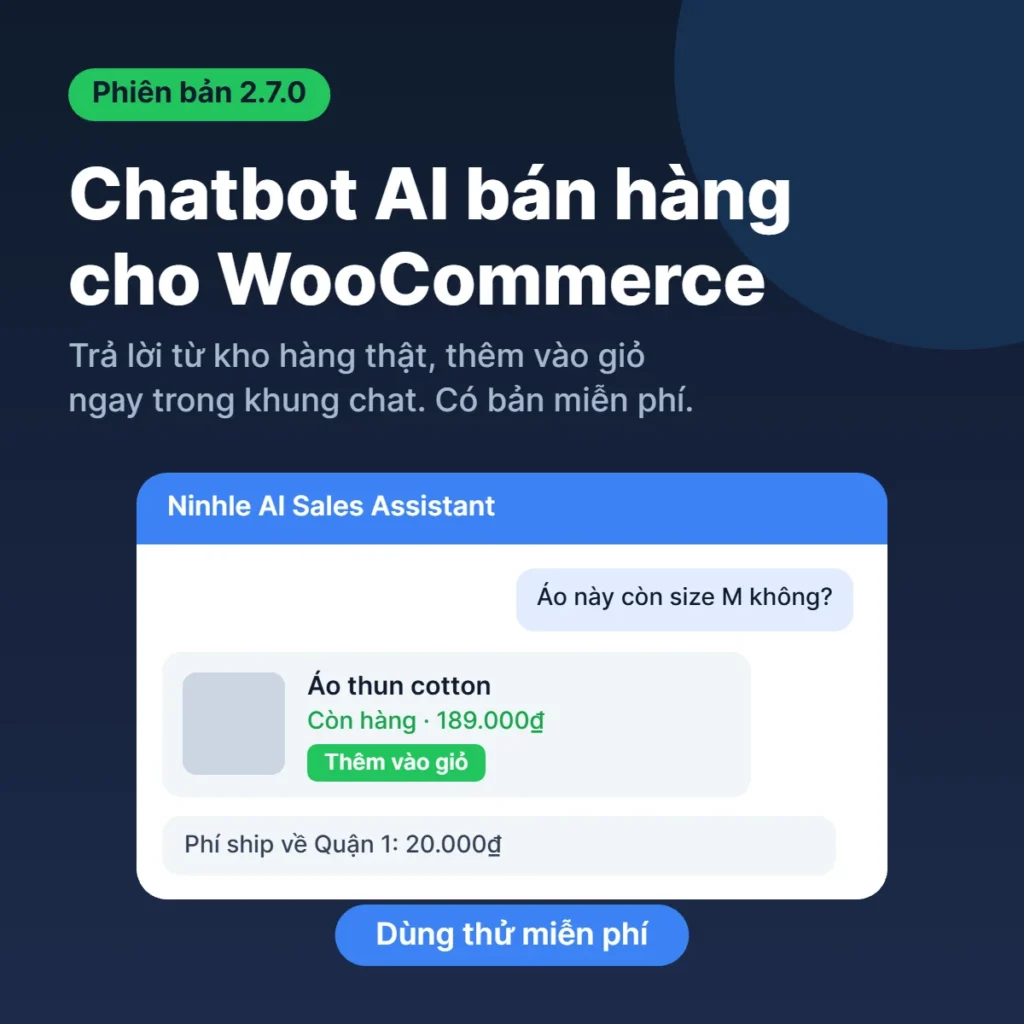
Quick answer: Ninhle AI Sales Assistant is a free AI chatbot plugin for WooCommerce. It answers shoppers from your store’s real products, prices and stock, lets them add items to the cart inside the chat, shows shipping and the total before checkout, and tracks orders. You bring your own OpenAI, Claude or Gemini API key and pay the provider directly, with no per-chat fee. The latest version is 2.7.0.
It started with the same three messages, over and over
I’ve built online stores, websites and brands for clients for many years, and most of my clients are small online shops. Whenever I sat with a store owner, I heard the same complaint about losing customers, always in the same setting: a phone buzzing all day with the same questions. “Do you have this in size M?” “How much is shipping?” “Where is my order?”
Reply a few minutes late and the shopper is gone. Hiring someone to watch the chat is too expensive for a small shop. And the chatbots I tried either followed rigid scripts or made up prices and stock, because they never read the store’s real data.
So I built Ninhle AI Sales Assistant around one rule: the chatbot only says what the store actually has. If it doesn’t know, it says so and hands the chat to a person.
Setting it up in about 10 minutes: here’s how I do it
Step 1: Install the free plugin
In WordPress, go to Plugins → Add New, search for “Ninhle AI Sales Assistant”, then Install and Activate. You need WordPress 6.3+, PHP 8.1+ and WooCommerce. You can also read the details on Ninhle AI Sales Assistant on WordPress.org.
Step 2: Connect an AI provider (or skip it for now)
Paste your API key from OpenAI, Anthropic (Claude) or Google (Gemini). On WordPress 7.0 and later you can use the AI connection built into WordPress instead. You pay the provider directly; there’s no middleman server and no per-conversation fee from me.
No key yet? Local-only mode still answers greetings, store policies, cart questions and order status from your store data, with no AI call. I usually suggest store owners start there.
Step 3: Sync your catalog
One click and the assistant knows your products, prices and stock. If you prefer the command line: wp ninhle-ai-sales-assistant sync-products.
Step 4: Give the assistant your brand
As someone who builds brands, this is my favourite part. Set the name, logo, colour, font and suggested questions, with a live preview. The chat should feel like part of your brand, not a stray widget in the corner.
Step 5: Write your sales playbook
Give the assistant a persona, the qualifying questions to ask, how to handle objections and how to close. Write it the way you’d brief a new team member.
What’s new in version 2.7.0?
This release focuses on the hardest part: getting from a question to a payment.
- Order summary in the chat: items, shipping options for the shopper’s address, tax, total and your payment methods, all calculated by WooCommerce.
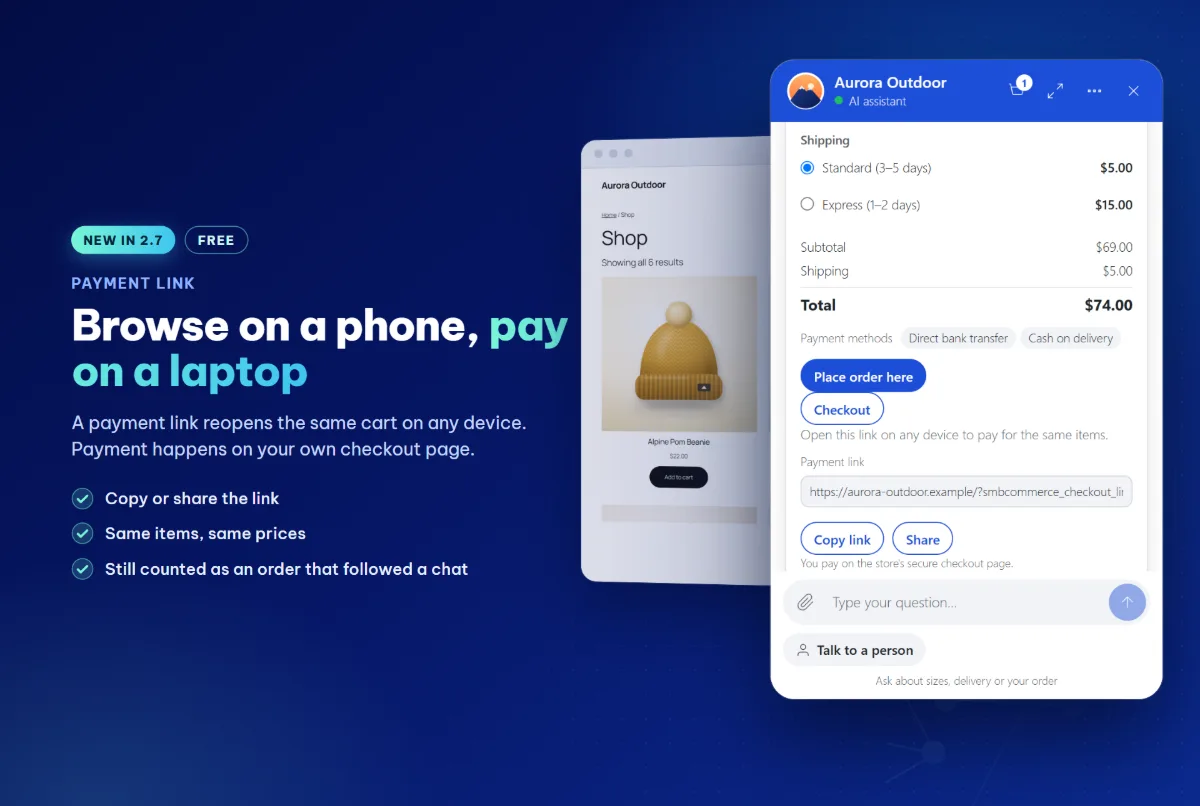
- Checkout links: “Get a payment link” opens the same items on another device, so a shopper can chat on their phone and pay on a laptop.
- More order tracking: tracking numbers and delivery status from AfterShip, ParcelPanel, Trakoo and YITH Order Tracking, plus delivery status from TrackShip.
- Starter plan: cash-on-delivery and bank-transfer orders placed in the chat, with “payment received” messages.
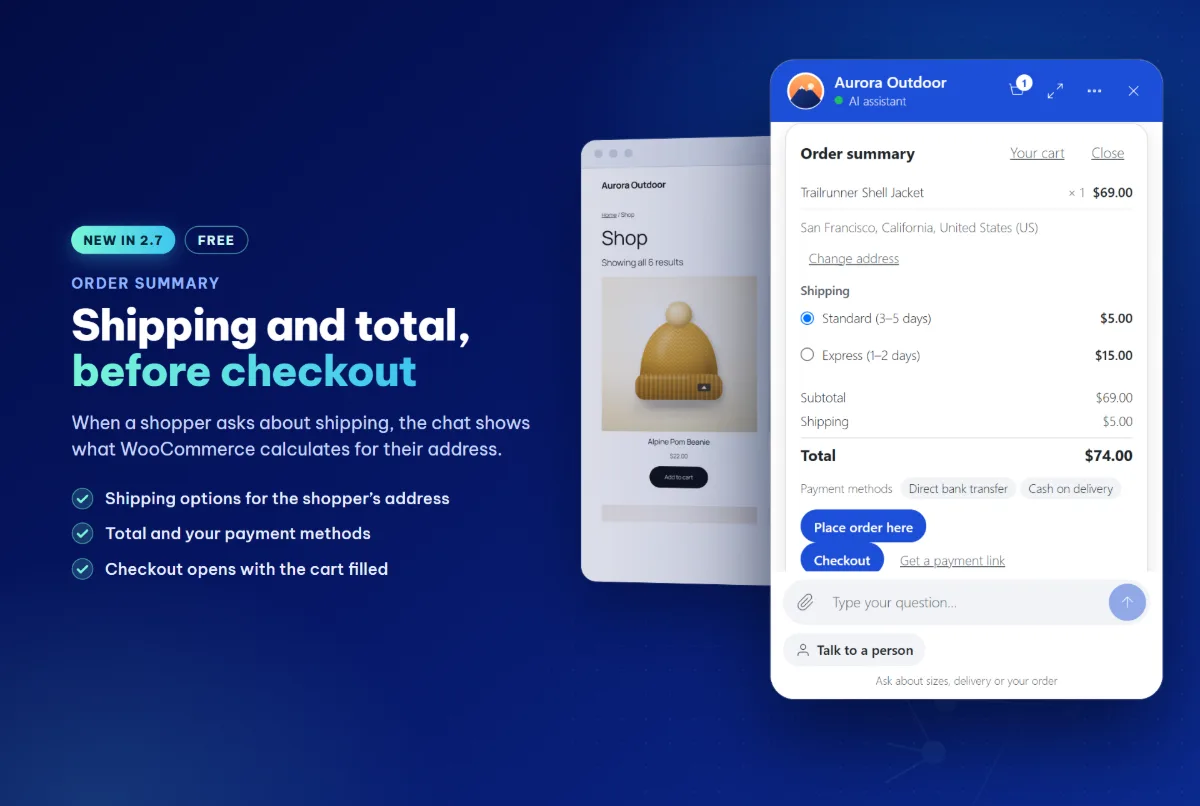
One thing I kept on purpose: the chat never takes card details. Payment happens on your own checkout page through your gateway (Stripe, PayPal or any other). “Add to cart” runs in the shopper’s own browser, so your prices, stock rules and discounts apply as usual.
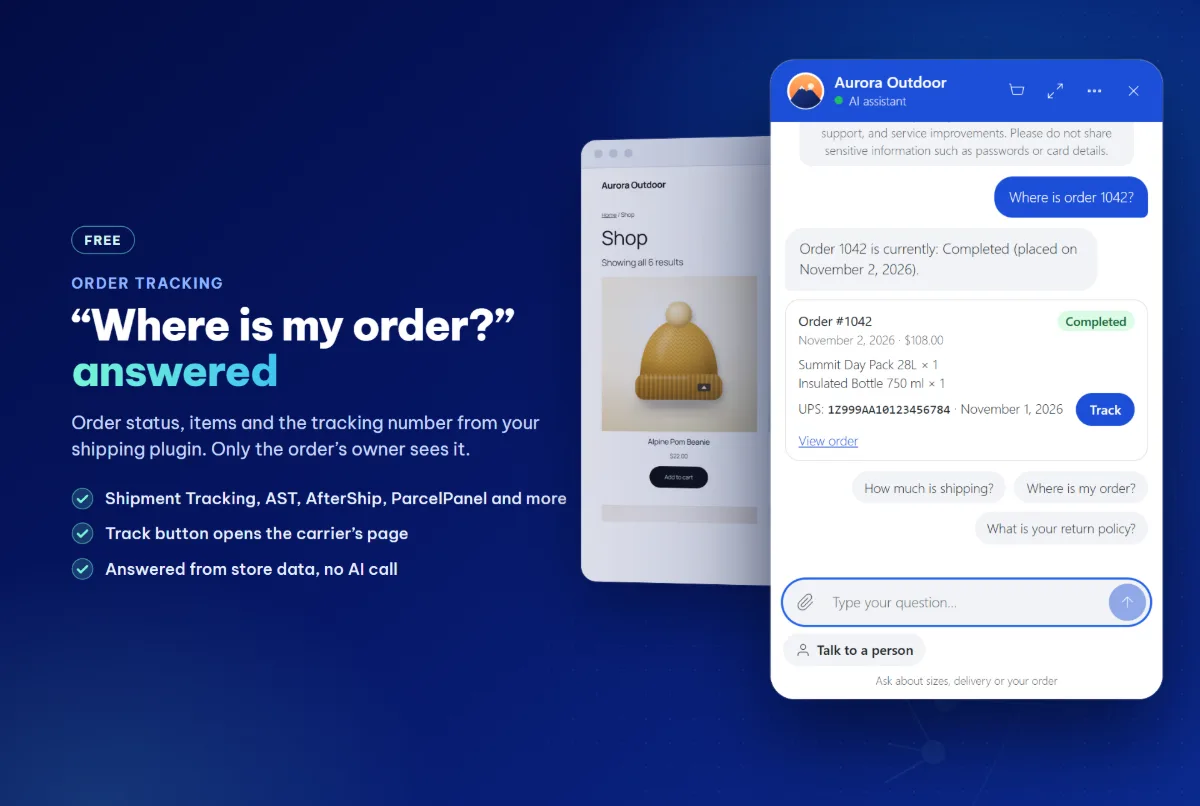
“Where is my order?” answered without you
This is the question that eats the most time in any store. Now the chatbot replies with an order card: status, items, total and a tracking number with a Track link. Logged-in customers see their recent orders straight away. Guests give the order number with the email or phone number they used; without that proof, nothing is revealed.
The part I value most: knowing why shoppers ask but don’t buy
The Sales Insights tab lists the questions the assistant couldn’t answer, grouped and ranked. Type your answer there and the assistant uses it from the next reply. It also shows what shoppers searched for but couldn’t find, and which products they wanted while out of stock.
To me, that’s worth more than the chat itself: it points straight at where the store is losing orders. The AI Value & Performance tab shows what the AI cost and how many orders followed a chat, each with its sample size so you don’t over-read small numbers.
Good to know before you start
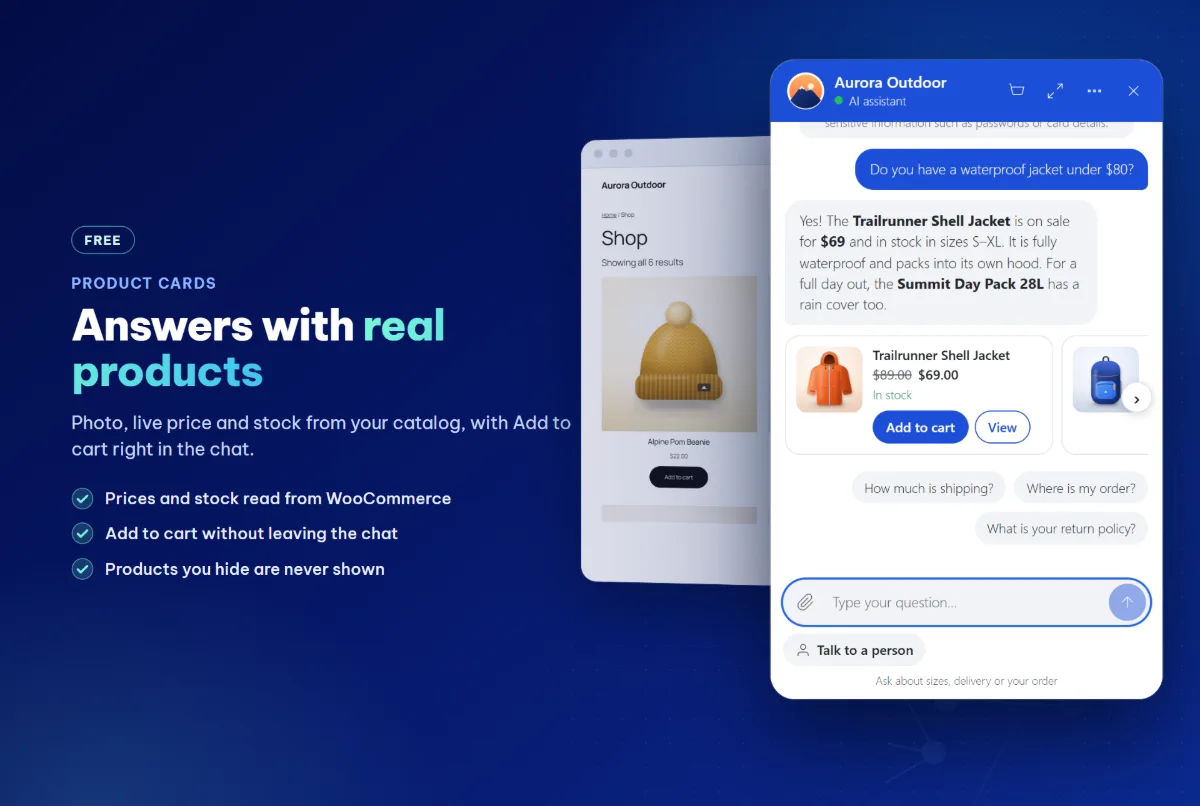
- No made-up prices or stock: when a search finds nothing, it suggests the nearest categories and asks one question instead of guessing.
- Replies in the shopper’s language: detects 15 languages without an AI call and keeps product names, prices and order numbers exactly as in your store.
- “Talk to a person” is always visible: your team replies from the Inbox in WP Admin.
- Your data stays in your database: works with WordPress’s personal-data export and erasure tools.
- Light: the chat loads only when needed; HPOS and the Cart and Checkout blocks are supported.
Free vs paid: what’s the difference?
The free version is genuinely usable: nothing is locked or time-limited. Starter adds cash-on-delivery and bank-transfer orders in the chat, options and quantities on product cards, Telegram notifications, signed webhooks for n8n, Make and Zapier, and a nightly AI label of why chats didn’t turn into orders. Pro adds automatic failover to a second AI provider, daily and monthly AI budget caps, and lead scoring. AI usage is always billed separately by your provider.
Frequently asked questions
Is this AI chatbot for WooCommerce free?
Yes. The free version on WordPress.org includes all the core features. You only pay OpenAI, Anthropic or Google for AI usage if you use their API key, and nothing at all in local-only mode.
Can the chatbot add products to the cart?
Yes. Product cards in the chat have an Add to cart button. In the free version, products with options link to the product page; the Starter plan lets shoppers pick options and quantities on the card.
Can shoppers pay in the chat?
The chat shows the order summary and total; payment happens on your store’s checkout page. The Starter plan adds cash-on-delivery and bank-transfer orders placed in the chat.
Will it slow down my store?
The chat loads only when needed, and AI replies run in the background, so a slow AI provider doesn’t hold up your pages.
Is my store data sent to the developer?
No. Conversations and leads are stored in your own WordPress database. Messages go only to the AI provider you choose.
Try it
If your store keeps answering the same questions, install the free version and try local-only mode first. It takes about 10 minutes, and you’ll know quickly whether it fits your shop.
Get the free version on WordPress.org · See the Starter and Pro plans
Once you’ve used it, I’d really appreciate an honest review on WordPress.org. Real feedback is what shapes the next version.
Ninh Le, developer of Ninhle AI Sales Assistant
Frequently asked questions
Chatbot AI cho WooCommerce này có miễn phí không?
Có. Bản miễn phí trên WordPress.org gồm đầy đủ tính năng cốt lõi. Bạn chỉ trả phí cho OpenAI, Anthropic hoặc Google khi dùng API key của họ, còn chế độ local-only thì không mất phí AI.
Chatbot có thêm sản phẩm vào giỏ hàng được không?
Được. Thẻ sản phẩm trong chat có nút Add to cart. Ở bản miễn phí, sản phẩm có tùy chọn sẽ dẫn đến trang sản phẩm; gói Starter cho chọn tùy chọn và số lượng ngay trên thẻ.
Khách có thanh toán ngay trong chat được không?
Chat hiển thị tóm tắt đơn và tổng tiền, còn thanh toán diễn ra ở trang checkout của cửa hàng. Gói Starter bổ sung đơn COD và chuyển khoản đặt ngay trong chat.
Plugin có làm chậm website không?
Chat chỉ tải khi cần và phản hồi AI chạy nền, nên nhà cung cấp AI chậm cũng không làm chậm trang của bạn.
Dữ liệu cửa hàng có bị gửi cho nhà phát triển không?
Không. Hội thoại và lead được lưu trong database WordPress của bạn. Tin nhắn chỉ được gửi tới nhà cung cấp AI mà bạn chọn.